
自定义Tabbar
https://www.uviewui.com/components/tabbar.html
自定义后可以加消息数量,但是会出现跳转闪屏问题,解决方案是使用单页面完成所有Tabbar功能,即使用v-if手动操作显示页面
操作后发现底部没有出现默认的颜色分隔线,可以强制手动加上
/*  底部tabbar */
.u-tabbar__content {
  border-top: 1px solid #eee !important;
}
版本更新
<!-- 下载 -->
<view>
  <u-loading-page :loading="updateData.flag" :loading-text="'更新中' + updateData.progress + '%...'" color="#333"
    font-size="18" icon-size="36" loading-color="#333"></u-loading-page>
</view>

// 版本更新数据
updateData: {
  flag: false,
  progress: 0,
}

// 版本更新方法
updateApp() {
  // 同步获取设备信息
  let data = uni.getSystemInfoSync()
  // 获取自定义版本号,防止云打包不一致问题
  let appWgtVersionArry = data.appWgtVersion.split('.')
  let appVersionNumber = parseInt(appWgtVersionArry.join(''))
  console.log(appVersionNumber);
  // https://zpaik.cn/download/apk/qc.apk
  // uni.showLoading({
  //   title: '更新中'
  // })
  // 展示下载进度
  let _this = this
  _this.updateData.flag = true
  let downloadTask = uni.downloadFile({
    url: 'https://zpaik.cn/download/apk/qc.apk',
    success: (downloadResult) => {
      if (downloadResult.statusCode === 200) {
        plus.runtime.install(downloadResult.tempFilePath, {
          force: false
        }, function() {
          _this.updateData.flag = false
          console.log('更新安装成功');
          plus.runtime.restart()
        })
      }
    }
  })
  // 下载进度
  downloadTask.onProgressUpdate((res) => {
    _this.updateData.progress = res.progress
    console.log('下载进度' + res.progress);
  });
},
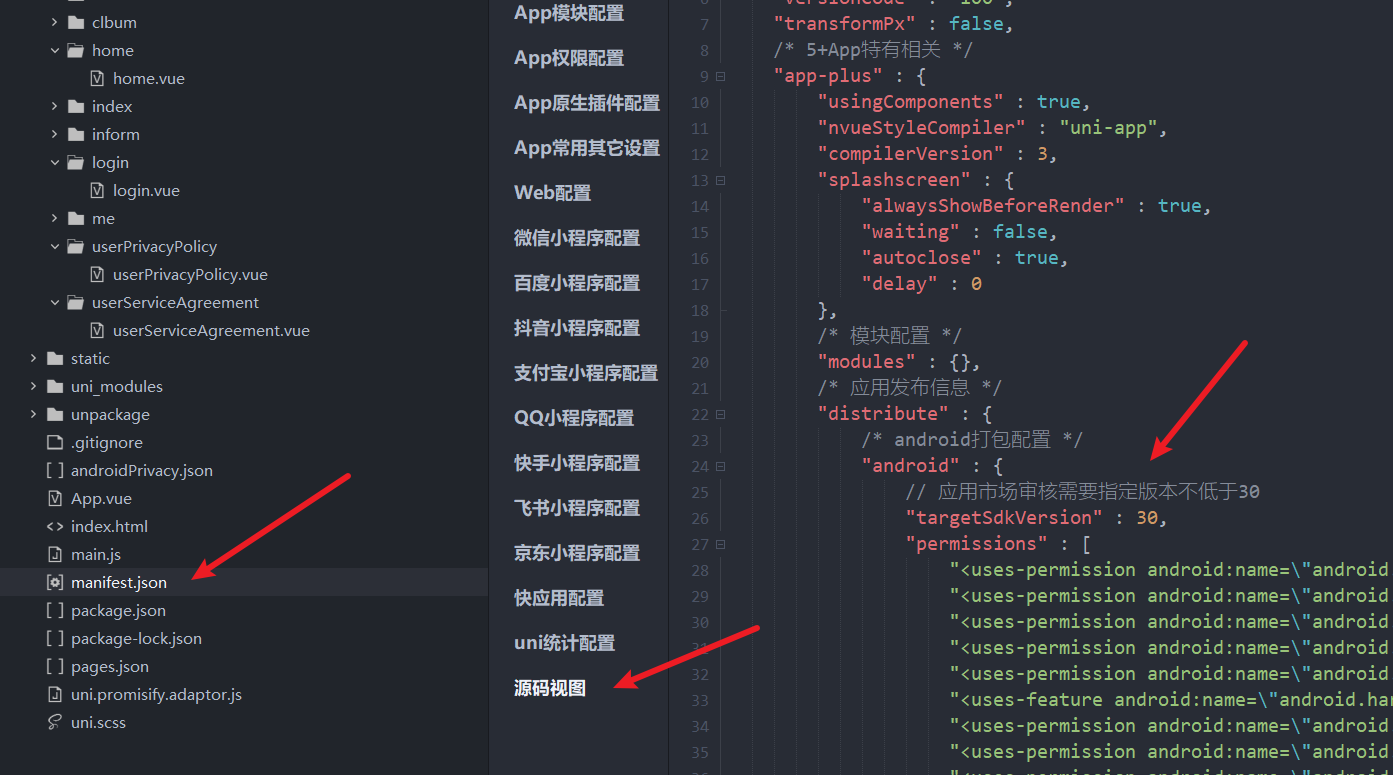
targetSdk版本配置
应用市场要求30或以上
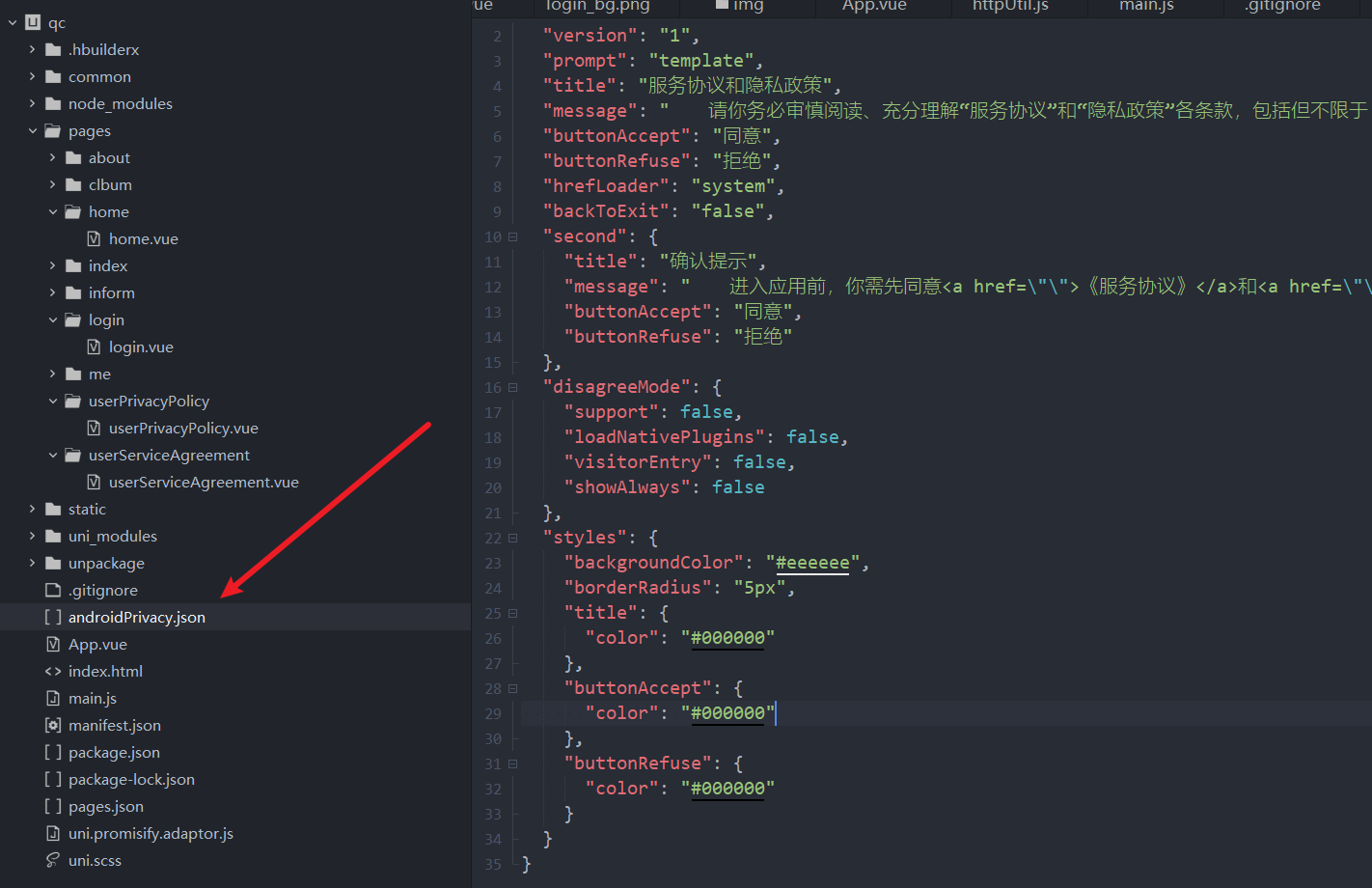
第一次启动隐私协议
小米应用上架审核要求必须出现同意和拒绝按钮,uniapp配置示例
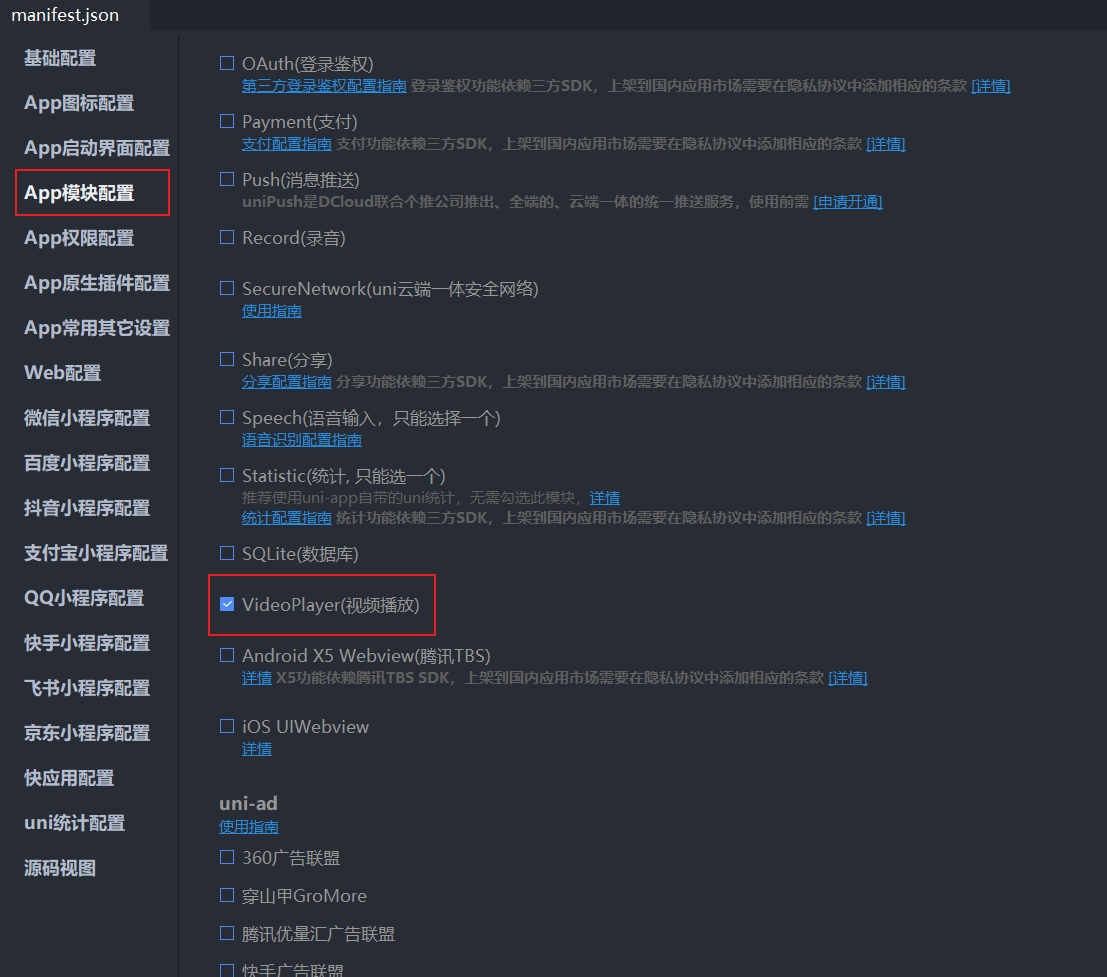
视频模块添加
如果应用出现了视频播放的场景,打包时需要配置视频播放,否则会出现“打包时未添加”
拨打电话
// 拨打电话
makePhoneCall() {
  uni.makePhoneCall({
    phoneNumber: '13041491933'
  });
},
图片全屏预览
<template>
  <view>
    <image src="图片路径" @click="preview"></image>
  </view>
</template>

<script>
export default {
  methods: {
    preview() {
      uni.previewImage({
        urls: ['图片路径'], // 需要预览的图片链接列表
      });
    },
  },
};
</script>
保存图片到相册
// 保存图片
saveImage() {
    if (this.detalis.image) {
        for (let img of this.detalis.image) {
            uni.downloadFile({
                url: this.baseUrl + img, //图片下载地址
                success: res => {
                    if (res.statusCode === 200) {
                        uni.saveImageToPhotosAlbum({ //保存图片到系统相册。
                            filePath: res.tempFilePath, //图片文件路径
                            success: function() {
                                uni.showToast({
                                    title: '图片保存成功,请到相册查看',
                                    icon: 'none',
                                });
                            },
                            fail: function(e) {
                                console.log(e);
                                uni.showToast({
                                    title: '图片保存失败',
                                    icon: 'none',
                                });
                            }
                        });
                    }
                }
            });
        }
    }
},
复制到剪贴板
 uni.setClipboardData({
          data: content,
          success: () => {
            // 可以添加用户提示复制成功
            uni.showToast({
              title: '房源信息已复制',
              duration: 2000
            });
          },
          fail: () => {
            // 可以添加用户提示复制失败
            uni.showToast({
              title: '操作失败',
              icon: 'none',
              duration: 2000
            });
          }
        });
开启分享到朋友圈
onLoad(option) {
  wx.showShareMenu({
    withShareTicket: true,
    //设置下方的Menus菜单,才能够让发送给朋友与分享到朋友圈两个按钮可以点击
    menus: ["shareAppMessage", "shareTimeline"]
  })
},

// 定义分享到朋友圈的内容(与methods平级)
onShareTimeline(res) {
  return {
    title: '文字内容',
    type: 0,
    summary: "",
  }
},
字体加载
在App.vue中
onLaunch: function() {
  console.log('App Launch')
  // 加载网络字体
  uni.loadFontFace({
    family: 'zhFont',
    global: true,
    source: 'url("https://jushang153299.oss-cn-chengdu.aliyuncs.com/tombstone/app/static/zhFont.TTF")',
    success() {
      console.log('hado-font加载成功')
    },
    fail(err) {
      console.log('hado-font加载失败', err)
    },
    complete() {
      console.log('hado-font字体加载');
    }
  })
},


<style lang="scss">
  /*每个页面公共css */
  body {
    font-family: 'zhFont', sans-serif;
    font-weight: 200;
  }
</style>
获取窗口屏幕宽高
onLoad() {
  uni.getSystemInfo({
    success: function(res) {
      const windowWidth = res.windowWidth; // 窗口宽度
      const windowHeight = res.windowHeight; // 窗口高度
      console.log(windowWidth);
      console.log(windowHeight);
    }
  })
},
扫码
uni.scanCode({
  success: function (res) {
    console.log('扫码成功');
    console.log('类型:', res.scanType);  // 码的类型,如 QR_CODE
    console.log('编码格式:', res.charSet); // 编码字符集
    console.log('结果:', res.result);     // 扫码得到的数据,如网址、文本等
  },
  fail: function (err) {
    console.log('扫码失败', err);
  }
});